How to Remove Password from PDF (Legal Methods Only)
PDF files are widely used for sharing important documents like contracts, reports, invoices, and personal records. To protect sensitive information, many PDFs are secured with passwords. While password protection is useful, sometimes it becomes inconvenient when you need to edit, print, or copy content from a locked file.
If you legally own the PDF or have permission from the document owner, removing the password from a PDF is completely safe and legal. In this guide, you will learn how to remove password from PDF using legal methods only, along with the safest tools and tips to unlock your files without risking your data.
Why PDFs Are Password Protected
Before learning how to remove a password from a PDF, it’s important to understand why password protection is used.
PDF passwords are commonly used for:
Protecting confidential business documents
Securing financial reports and invoices
Preventing unauthorized editing or printing
Protecting personal information such as identity documents
Restricting access to sensitive legal files
There are usually two types of PDF passwords:
1. Open Password
This password is required before you can even open the PDF file.
2. Permission Password
This allows you to open the file but restricts actions such as printing, copying, or editing.
If you know the password, removing it is usually quick and easy.
Is It Legal to Remove Password from a PDF?
Yes, removing a password from a PDF is legal if:
- You created the PDF yourself
- The document owner gave you permission
- The file belongs to you
- You forgot your own password
However, removing protection from someone else’s document without permission may violate copyright laws or privacy regulations. Always make sure you have the legal right to unlock the document before proceeding.
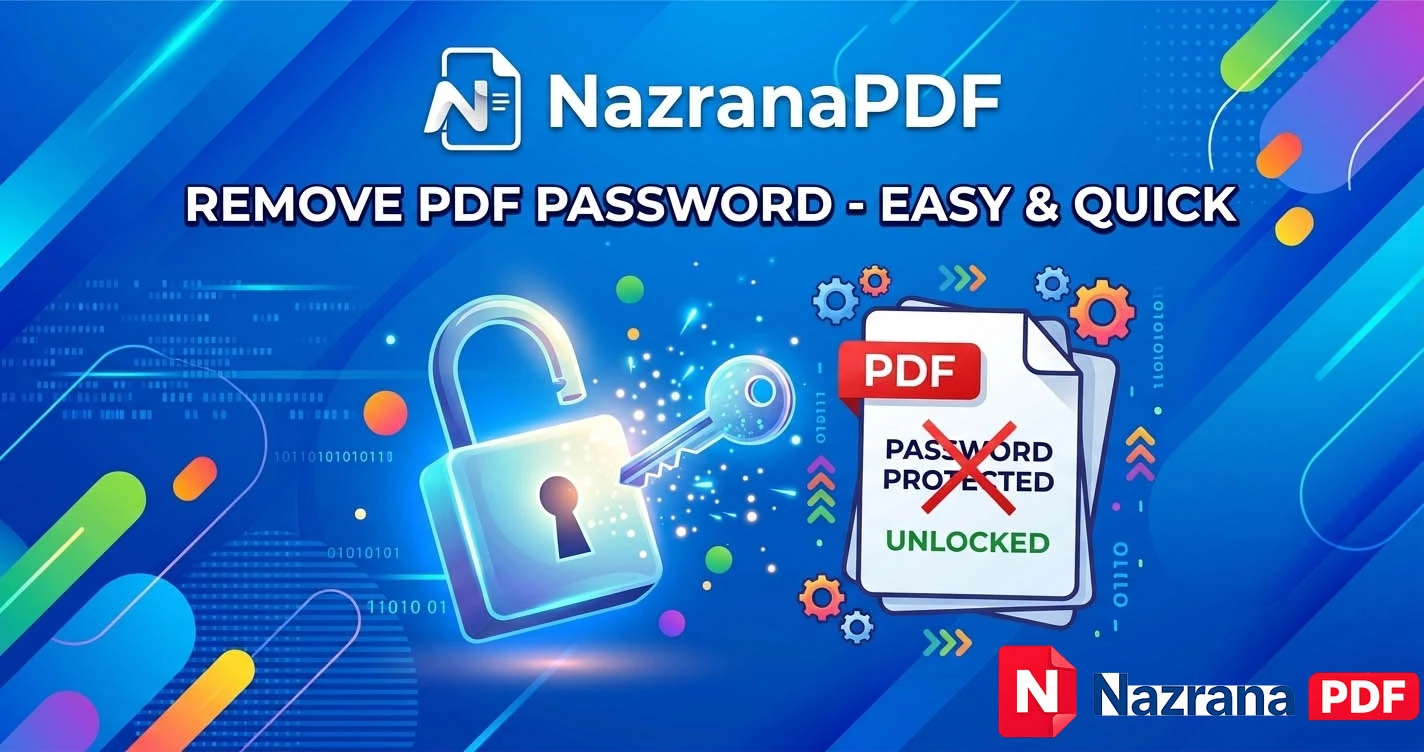
Method 1: Remove PDF Password Using an Online PDF Tool
The easiest way to remove a PDF password is by using a secure online PDF unlocking tool. These tools are designed to safely remove restrictions without damaging the file.
Steps to Unlock a PDF Online
- Open a trusted PDF unlock tool.
- Upload your password-protected PDF file.
- Enter the password if prompted.
- Click the Unlock PDF or Remove Password button.
- Download the unlocked version of the file.
Online tools are popular because they work directly in your browser and do not require any software installation.
Benefits of Online PDF Tools
- Fast and easy to use
- No software installation required
- Works on Windows, Mac, and mobile devices
- Supports multiple PDF formats
- Free options available
Many websites also provide additional features like merge PDF, split PDF, compress PDF, convert PDF to Word, and Lock PDF.
Method 2: Remove Password Using Google Chrome
Many people don’t know that Google Chrome can remove PDF passwords using the print function.
Steps
- Open the password-protected PDF in Google Chrome.
- Enter the password to unlock it.
- Press Ctrl + P to open the Print option.
- Select Save as PDF as the printer.
- Click Save.
The newly saved file will not contain the password protection.
This method works well when you know the password and only want to remove restrictions for easier access.
Method 3: Remove PDF Password Using Adobe Acrobat
If you use Adobe Acrobat Pro, you can remove password protection directly from the document settings.
Steps
- Open the PDF in Adobe Acrobat.
- Enter the password to access the file.
- Go to File → Properties → Security.
- Change the Security Method to No Security.
- Save the document.
This will permanently remove the password from the file.
Adobe Acrobat is a professional solution and is commonly used by businesses handling legal and financial documents.
Method 4: Remove Restrictions by Printing to PDF
Another simple method is printing the document to a new PDF file.
Steps
- Open the locked PDF file.
- Enter the password.
- Choose Print.
- Select Microsoft Print to PDF.
- Save the new file.
The new PDF file will be unlocked and ready for editing or sharing.
Security Tips Before Removing PDF Password
When working with secure documents, it is important to follow basic safety practices.
1. Use Trusted Tools
Avoid suspicious websites that may store or misuse your files.
2. Check File Permissions
Make sure you have permission to modify the document.
3. Avoid Uploading Sensitive Documents
For confidential documents such as ID proofs or financial records, use trusted and secure tools only.
4. Delete Uploaded Files
Some tools automatically delete uploaded files after processing, which helps protect your privacy.
When Should You Remove PDF Password?
Removing a PDF password can be helpful in many situations, including:
- Editing a document you created earlier
- Sharing files with team members
- Printing documents without restrictions
- Copying important text for reports
- Archiving documents without security limits
In professional environments, removing restrictions can make document management much easier.
Best Features of Modern PDF Tools
Most modern PDF tools now provide multiple document features beyond unlocking PDFs.
Some common features include:
- Merge multiple PDFs into one
- Split large PDFs into smaller files
- Compress PDF size for faster sharing
- Convert PDF to Word, Excel, or JPG
- Add page numbers and watermarks
- Rotate or reorder PDF pages
These tools make PDF editing much more convenient for students, professionals, and businesses.
Conclusion
Password protection helps keep PDF files secure, but sometimes it can make document management difficult. If you legally own the file or have permission from the document owner, removing the password from a PDF is simple and safe.
You can unlock your documents using online PDF tools, Google Chrome, Adobe Acrobat, or the print-to-PDF method. These solutions allow you to access, edit, and share your files without restrictions.
Always remember to follow legal guidelines and use secure tools when working with protected documents. With the right method, you can remove PDF passwords quickly while keeping your documents safe.
#remove password from pdf #unlock pdf online #unlock pdf online #remove pdf password free #how to remove password from pdf @how to remove password from pdf without software #best free pdf password remover online #unlock pdf for editing and printing
FAQ Section (Human Readable)
Q1: Can I remove a password from a PDF file?
Yes, you can remove a password from a PDF if you know the password or have permission from the document owner. Many online PDF tools allow you to unlock PDF files safely.
Q2: How do I remove a password from a PDF for free?
You can remove a PDF password for free by uploading the file to a trusted PDF unlock tool, entering the password, and downloading the unlocked document.
Q3: Is it legal to unlock a password protected PDF?
Yes, unlocking a PDF is legal if the document belongs to you or if you have permission from the owner.
Q4: Can Google Chrome remove PDF passwords?
Yes. If you know the password, you can open the file in Chrome and use the Print → Save as PDF option to create an unlocked copy.
Q5: What happens after removing PDF password protection?
After removing the password, you can edit, print, copy, and share the PDF without restrictions.