.jpg)
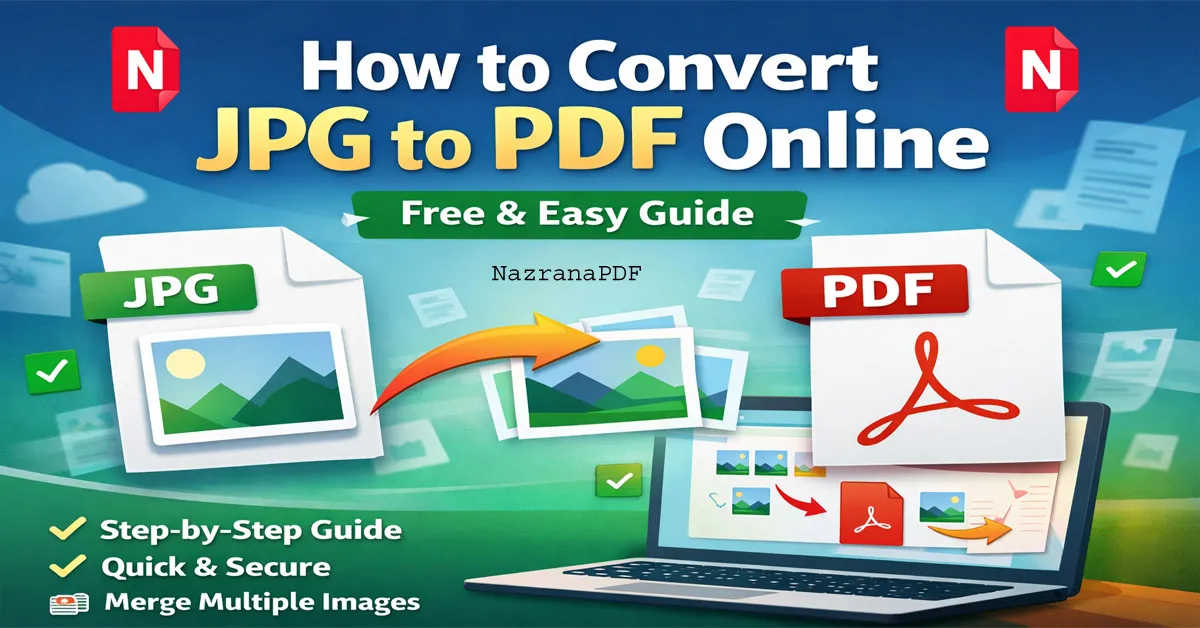
How to Convert JPG to PDF Online (Free & Easy Guide)
Converting JPG to PDF is one of the most common tasks today. Whether you are submitting a government form, applying for a job, uploading exam documents, or sharing scanned files, PDF format is usually required. If you have images in JPG format, you can easily convert them into a PDF file in just a few seconds.
In this guide, we will explain everything about JPG to PDF conversion, including different methods and the easiest way to convert images online for free.
What is JPG Format?
JPG (or JPEG) is a popular image file format used for photos, screenshots, and scanned documents. It is widely used because:
It reduces file size
It maintains good image quality
It works on all devices
However, JPG files are image files, not document files. That’s why many websites and official portals do not accept JPG images for document submissions.
What is PDF Format?
PDF (Portable Document Format) is a universal file format used for documents. It is professional, secure, and easy to share. PDF files:
Keep formatting intact
Are accepted by most government and job portals
Can combine multiple pages into one file
Are easy to print and email
Because of these advantages, many users convert JPG images into PDF format.
Why Convert JPG to PDF?
Here are the main reasons people convert JPG images into PDF files:
To upload documents on official websites
To merge multiple images into one file
To create a professional document
To reduce image clutter
To send files through email easily
To prepare exam or job application documents
If you have multiple images of certificates or scanned papers, combining them into one PDF makes your submission much easier.
3 Ways to Convert JPG to PDF
There are multiple ways to convert JPG to PDF. Let’s look at the most common methods.
Method 1: Convert JPG to PDF Online (Fastest Method)
The easiest and fastest method is using an online JPG to PDF converter.
You can use our free tool here:
👉 https://www.nazranapdf.in/jpg-to-pdf/
Steps:
- Open the JPG to PDF tool.
- Upload your JPG image files.
- Arrange images if needed.
- Click Convert.
- Download your PDF instantly.
This method is:
- Free
- Fast
- No installation required
- Works on mobile and desktop
This is the best option for most users.
Method 2: Convert JPG to PDF Using Mobile
On Android:
- Open the image in Gallery
- Tap Share or Print
- Choose Save as PDF
- Save the file
On iPhone:
- Open Photos
- Tap Share
- Select Print
- Pinch out preview
Save as PDF
However, this method does not allow easy merging of multiple images in order.
Method 3: Convert JPG to PDF Using Windows or Mac
On Windows:
- Select image
- Right-click
- Choose Print
- Select Microsoft Print to PDF
- Save file
On Mac:
- Open image in Preview
- Click File → Export as PDF
This method works but can be slower and less flexible than online tools.
Why Use an Online JPG to PDF Converter?
Online converters are popular because they:
- Save time
- Work without software
- Allow multiple image merging
- Work on any device
- Provide quick downloads
If you frequently convert images, using an online JPG to PDF tool is the most convenient option.
Step-by-Step Guide Using Our JPG to PDF Tool
If you want a simple solution, follow this guide:
- Visit the JPG to PDF tool page.
- Click Upload.
- Select one or multiple JPG images.
- Adjust order if needed.
- Click Convert.
- Download your PDF file.
That’s it. No signup. No watermark. Completely free.
Common Problems & Solutions
Problem 1: PDF file size is too large
Solution: After conversion, use a PDF compress tool.
Problem 2: Images appear in wrong order
Solution: Arrange images properly before converting.
Problem 3: File not uploading
Solution: Check internet connection or file size limit.
Is JPG to PDF Conversion Safe?
Security is important when uploading files online. Make sure you use a trusted website. A good JPG to PDF tool:
- Does not store files permanently
- Uses secure processing
- Deletes files automatically after conversion
Always avoid unknown websites that ask for unnecessary permissions.
Who Should Use JPG to PDF Converter?
This tool is useful for:
- Students submitting assignments
- Job applicants uploading documents
- Government form applicants
- Teachers preparing documents
- Office workers sharing reports
- Anyone needing document format conversion
Benefits of Converting Images to PDF
- Professional presentation
- Easy file management
- Better compatibility
- Reduced submission errors
- Clean document format
PDF is the preferred format for official documentation worldwide.
Final Words
Converting JPG to PDF is simple and quick if you use the right method. While mobile and desktop options are available, the fastest and most convenient way is using an online JPG to PDF converter.
If you need a free, fast, and easy solution, try our online JPG to PDF tool and convert your images instantly.