How to Compress PDF Without Losing Quality
PDF files are one of the most commonly used document formats for business reports, academic papers, resumes, eBooks, and official documents. However, large PDF file sizes can create problems when uploading files to websites, attaching them to emails, or sharing them through messaging apps.
The biggest concern people have is this:
How can you compress a PDF without losing quality?
The good news is that you can reduce PDF file size while keeping text sharp and images clear — if you use the right method. In this complete guide, you’ll learn safe and effective ways to compress PDF files without damaging formatting or readability.
Why PDF Files Become Large
Before compressing a PDF, it’s important to understand why some files are large in size. Common reasons include:
• High-resolution images embedded in the document
• Scanned documents saved in image format
• Unoptimized fonts and graphics
• Multiple layers and embedded elements
• Unnecessary metadata
When these elements are not optimized, the file size increases significantly.
What Does “Compress PDF Without Losing Quality” Mean?
Many people assume compression automatically reduces quality. That is not always true.
Smart PDF compression works by:
• Optimizing images without making them blurry
• Removing unnecessary metadata
• Compressing embedded fonts efficiently
• Reducing redundant elements
If done properly, the difference in quality is barely noticeable to the human eye.
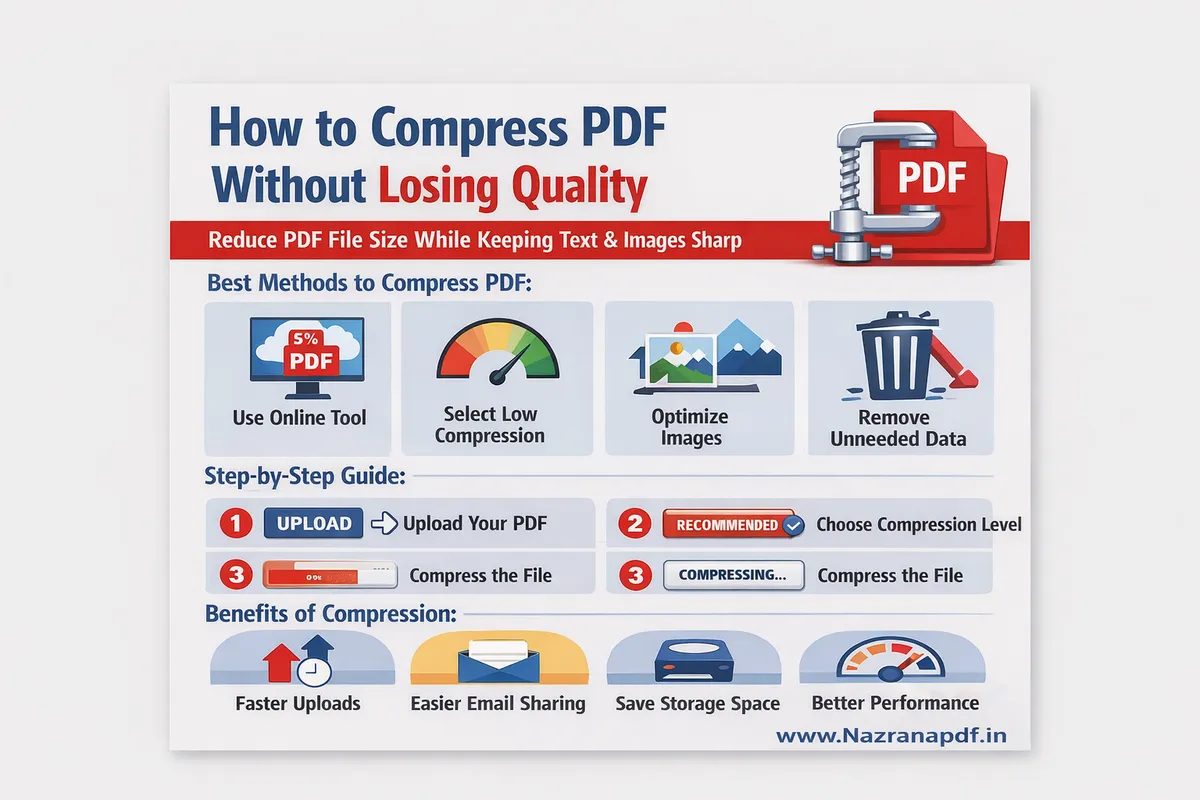
Best Methods to Compress PDF Without Losing Quality
1. Use an Online PDF Compression Tool
One of the easiest and fastest ways to reduce PDF file size is by using a reliable online PDF compression tool.
Benefits of using an online tool:
• No software installation required
• Works on mobile, tablet, and desktop
• Fast processing
• Beginner-friendly interface
• Instant download
Make sure you choose a secure tool that automatically deletes files after processing to protect your privacy.
2. Choose the Right Compression Level
Most PDF compressors offer different compression levels such as:
• Low compression (High quality)
• Medium compression (Balanced)
• High compression (Smaller size, slight quality reduction)
If you want to compress PDF without losing quality, always select low or recommended compression. This keeps text crisp and images clear while reducing unnecessary file weight.
3. Optimize Images Before Creating the PDF
If you are creating a PDF from images or Word documents:
• Resize images to required dimensions
• Avoid inserting extremely high-resolution images
• Use JPEG format instead of PNG for photos
• Remove unused design elements
This helps keep the final PDF size smaller from the beginning.
4. Compress Scanned PDFs Properly
Scanned PDFs are usually large because each page is stored as an image.
To reduce size without quality loss:
• Use OCR (Optical Character Recognition) tools
• Convert scanned images into text-based PDFs
• Use grayscale instead of color (if not necessary)
This dramatically reduces file size while improving searchability.
5. Remove Unnecessary Elements
PDFs sometimes contain hidden data like:
• Embedded fonts not used
• Hidden layers
• Comments and annotations
• Form data
Removing these elements can significantly reduce file size without affecting visible content.
Step-by-Step: How to Compress PDF Online
Here is a simple step-by-step guide:
- Upload your PDF file to a trusted PDF compression tool.
- Select the recommended or low compression option.
- Start the compression process.
- Download the optimized PDF file.
The entire process usually takes less than a minute.
Is Online PDF Compression Safe?
Security is an important concern when uploading documents online. To stay safe:
• Use HTTPS websites
• Avoid unknown or suspicious platforms
• Check privacy policy
• Choose tools that auto-delete files
Reputable PDF tools use encryption and delete files after processing to ensure privacy.
Benefits of Compressing PDF Without Losing Quality
Compressing your PDF files properly offers many advantages:
Faster Uploads
Smaller files upload quickly to websites and portals.
Easier Email Sharing
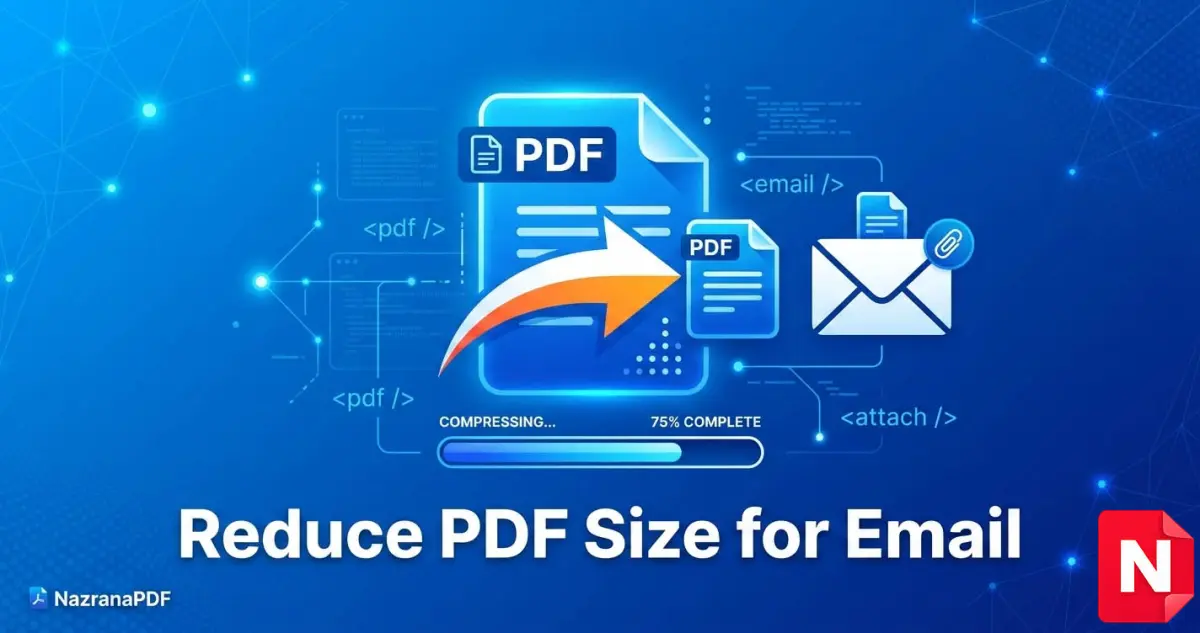
Email platforms often have attachment size limits. Compressed PDFs solve this issue.
Better Storage Management
Reduced file sizes help save storage space on devices and cloud drives.
Improved Website Performance
If you upload PDFs to your website, smaller files improve loading speed and user experience.
Common Mistakes to Avoid
When compressing PDFs, avoid these mistakes:
• Using extreme compression settings
• Repeatedly compressing the same file
• Using unknown or unsafe tools
• Ignoring image resolution before conversion
These mistakes may result in blurred images or unreadable text.
Who Needs PDF Compression?
PDF compression is useful for:
• Students submitting assignments
• Job seekers uploading resumes
• Businesses sharing reports
• Designers sending portfolios
• Government form submissions
• Freelancers sending client documents
Almost everyone working digitally can benefit from optimized PDF files.
Online vs Offline PDF Compression
Online Tools
• Quick and easy
• No installation required
• Accessible from anywhere
Offline Software
• Works without internet
• Suitable for bulk processing
• Advanced customization options
For most users, online tools are sufficient and convenient.
Final Thoughts
Knowing how to compress PDF without losing quality is essential in today’s digital world. Large PDF files can slow down productivity, cause upload errors, and waste storage space.
By using smart compression methods, choosing the right settings, and optimizing images properly, you can significantly reduce PDF file size while keeping your document professional and clear.
Whether you are a student, professional, or business owner, mastering PDF compression will help you manage documents more efficiently.
Start using reliable PDF compression tools today and enjoy faster uploads, easier sharing, and better digital organization.